
Download HitPaw Screen Recorder – Free, Secure, High‑Quality Screen Capture Tool
Overview
HitPaw Screen Recorder is a premium screen‑capture program built by the creators of HitPaw Watermark Remover, HitPaw ToolKit, and HitPaw Video Converter. Designed for both professionals and casual users, the app lets you record games, desktop activity, webcam footage, and picture‑in‑picture (PiP) videos with a single, intuitive interface. Whether you need to create a high‑definition gaming tutorial, capture a software bug for a support ticket, or produce a polished online‑class lecture, HitPaw delivers top‑notch video quality and flexible recording options.
The software offers three subscription plans—monthly, yearly, and lifetime—so you can choose a pricing model that fits your workflow. While the editing suite is modest compared to some competitors, the recorder compensates with robust real‑time features such as green‑screen background replacement, mouse‑cursor highlighting, and on‑the‑fly drawing tools. Overall, HitPaw Screen Recorder positions itself as a reliable, all‑in‑one solution for anyone who wants to capture screen activity quickly, securely, and without compromising on resolution.
Key Features of HitPaw Screen Recorder
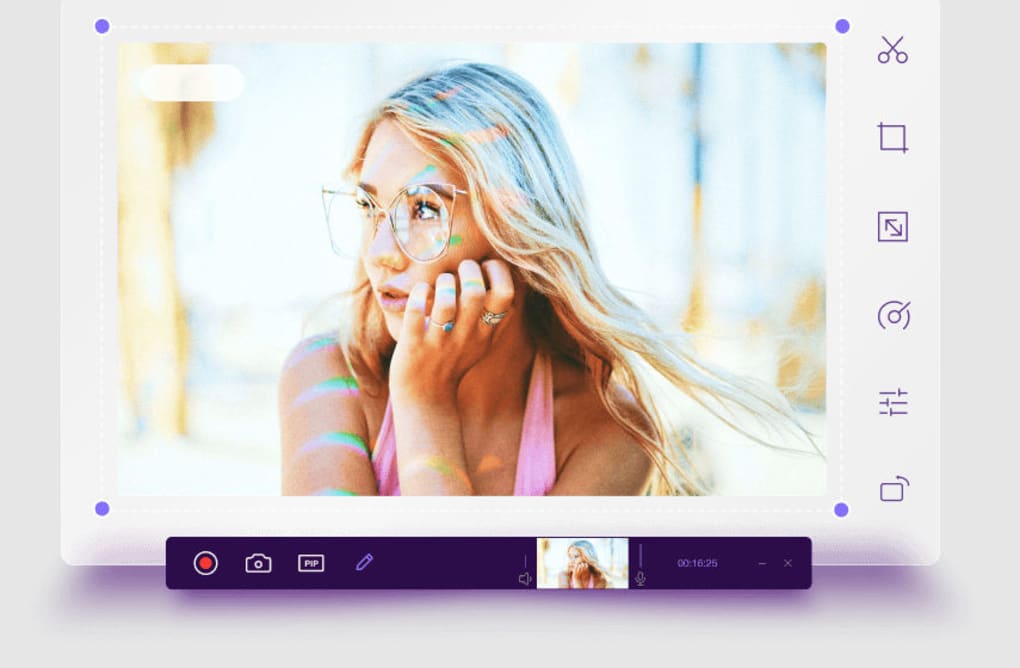
- Flexible Recording Area: Choose between full‑screen capture, custom region, or a specific window, giving you precise control over what’s recorded.
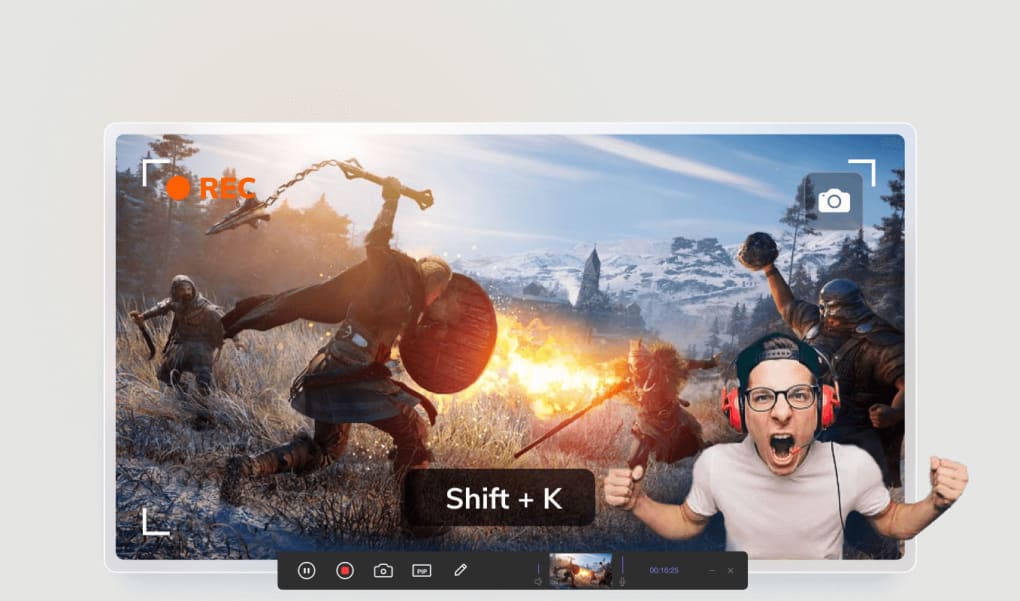
- High‑Definition Output: Record in up to 1080p/60 fps, ensuring smooth playback for gameplay, tutorials, and webinars.
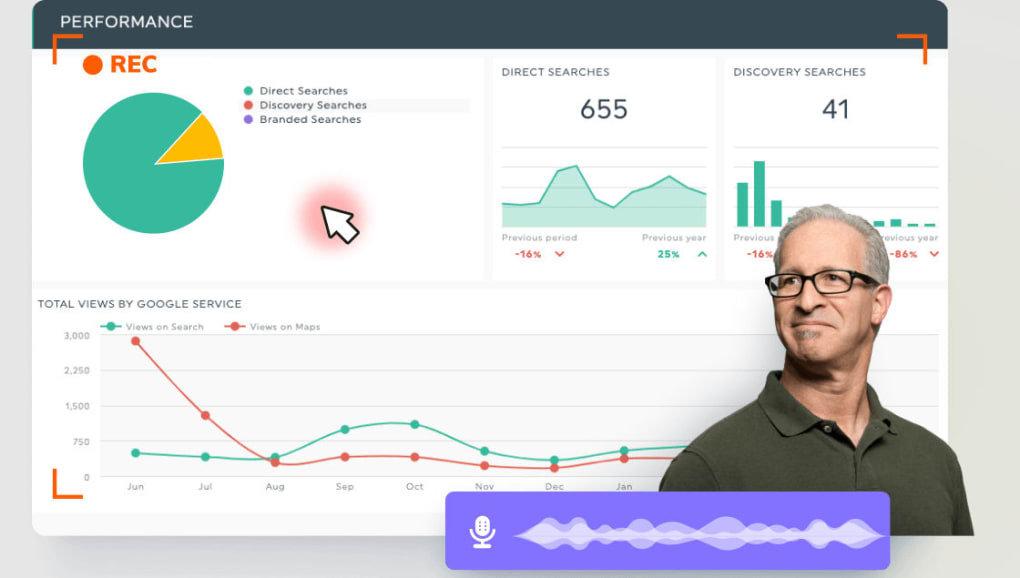
- Picture‑in‑Picture (PiP) Mode: Simultaneously capture your screen and webcam, perfect for live‑stream style presentations.
- Real‑Time Annotations: Use mouse‑cursor highlighting, drawing tools, and on‑screen text to emphasize key points during recording.
- Green‑Screen (Chroma Key) Support: Replace your background instantly, adding a professional polish to video tutorials.
- Audio Flexibility: Record system sound, microphone, or both, with separate volume controls for each source.
- Instant Screenshots: Capture still images without stopping the recording session.
- Export Options: Save recordings in MP4, MOV, or GIF formats, and choose from a range of codecs for optimal file size.
- Subscription Plans: Monthly, yearly, and lifetime licenses with regular updates and priority support.
- Cross‑Platform Consistency: Identical feature set on Windows and macOS, ensuring a seamless experience across devices.
These features make HitPaw Screen Recorder a versatile tool for educators, gamers, developers, and marketers alike. The combination of PiP, green‑screen, and annotation tools means you can produce engaging content without needing a separate video‑editing suite. Moreover, the software’s lightweight architecture ensures minimal impact on system performance, which is crucial when recording resource‑intensive games or 3D modeling applications.
Installation, Usage Instructions & Compatibility
Step‑by‑Step Installation
- Visit the official HitPaw website and click the Download button for your operating system (Windows 10/11 or macOS 10.13+).
- Run the installer file (
.exefor Windows,.dmgfor macOS) and follow the on‑screen prompts. The wizard will guide you through license agreement acceptance and installation folder selection. - After installation, launch HitPaw Screen Recorder from the desktop shortcut or start menu.
- When prompted, log in with your HitPaw account or create a new one to activate your chosen subscription plan.
- Configure initial settings—choose default output folder, set video resolution, and select audio sources—to streamline future recordings.
How to Record Your Screen
Once the application is open, you’ll see a clean control panel with three primary buttons: Full Screen, Custom Region, and Window. Click the button that matches your recording goal, then press the red Record icon. During capture, the toolbar remains docked at the screen edge, providing quick access to pause, stop, and screenshot functions.
To enable PiP, click the webcam icon, position the video feed, and choose a background removal method (green screen or blur). After stopping the recording, a preview window appears where you can trim the start/end points and add basic annotations. Finally, click Export to save the file in your preferred format.
System Requirements (itemprop="operatingSystem")
- Windows: Windows 10 (64‑bit) or later; Intel i5 4 GHz or equivalent; 8 GB RAM minimum; 500 MB free disk space.
- macOS: macOS 10.13 (High Sierra) or later; Apple M1 or Intel i5 processor; 8 GB RAM; 500 MB free disk space.
- GPU with DirectX 11 support (Windows) or Metal support (macOS) for smooth 1080p/60 fps recording.
- Internet connection required for license activation and update checks.
HitPaw Screen Recorder is optimized to run in the background with low CPU usage, making it suitable for gaming laptops and older desktops alike. The application also supports high‑DPI displays, ensuring crisp capture on 4K monitors without scaling artifacts.
Pros, Cons, Frequently Asked Questions & Expert Review
Pros
- Intuitive UI that shortens the learning curve for new users.
- High‑definition recording (up to 1080p/60 fps) with minimal performance impact.
- Powerful PiP and green‑screen features for professional‑grade tutorials.
- Flexible audio routing (system, mic, or both) with independent volume controls.
- Cross‑platform consistency between Windows and macOS.
- Regular updates and responsive customer support for paid subscribers.
Cons
- Limited post‑recording editing; lacks advanced trimming, transitions, and effects.
- No native support for Linux users.
- Subscription model may be less attractive to users preferring a one‑time purchase.
- Some advanced features (e.g., green‑screen) require a higher‑end GPU for smooth performance.
Frequently Asked Questions
Is HitPaw Screen Recorder free to use?
The software offers a 7‑day trial with full feature access. After the trial, you need to purchase a subscription (monthly, yearly, or lifetime) to continue using it.
Can I record 4K video with HitPaw?
Yes, the recorder supports up to 4K resolution, but you’ll need a capable GPU and sufficient storage. The default preset is 1080p for optimal performance.
Does the software work on macOS Ventura?
Absolutely. HitPaw Screen Recorder is fully compatible with macOS Ventura (13) and later, offering the same feature set as the Windows version.
Can I record my microphone while capturing gameplay?
Yes. You can enable microphone input alongside system audio, and adjust each source’s volume independently in the audio mixer.
Is there a way to add captions or subtitles after recording?
The built‑in editor provides basic text overlay, but for advanced captioning you’ll need an external video editor. HitPaw’s export formats are compatible with most subtitle tools.
Expert Review Summary
Overall Rating: 4.3 out of 5 stars
HitPaw Screen Recorder shines in its simplicity and real‑time capabilities. The PiP and green‑screen functions are rare in consumer‑grade recorders, giving creators a competitive edge. While the post‑recording editing suite is modest, the software’s low CPU footprint and high‑quality output make it a solid choice for gamers, educators, and support teams. The subscription pricing is transparent, and the lifetime plan offers excellent value for long‑term users. In short, if you need a reliable screen‑capture solution that works out‑of‑the‑box, HitPaw is worth the investment.
Conclusion & Call to Action
HitPaw Screen Recorder delivers a well‑rounded package for anyone looking to capture screen activity quickly, securely, and in high definition. Its blend of intuitive controls, advanced PiP and green‑screen options, and reliable cross‑platform performance sets it apart from many free alternatives. Although the editing tools are limited, the recorder’s core strength lies in capturing clean, professional‑grade footage without taxing your hardware. Whether you’re producing gaming tutorials, online lessons, or bug‑report videos, HitPaw provides the essential features you need.
Ready to elevate your screen‑recording workflow? Download HitPaw Screen Recorder now and take advantage of the 7‑day free trial. Choose the plan that fits your needs—monthly, yearly, or lifetime—and start creating crisp, engaging videos today.







